Norman Bauer

… just technical stuff!

Home » Posts tagged "WMI"

Various issues after installing Windows Management Framework 3.0 (KB2506143) on computer running SCCM 2012 agent

wmi_error_after_installing_wmf30

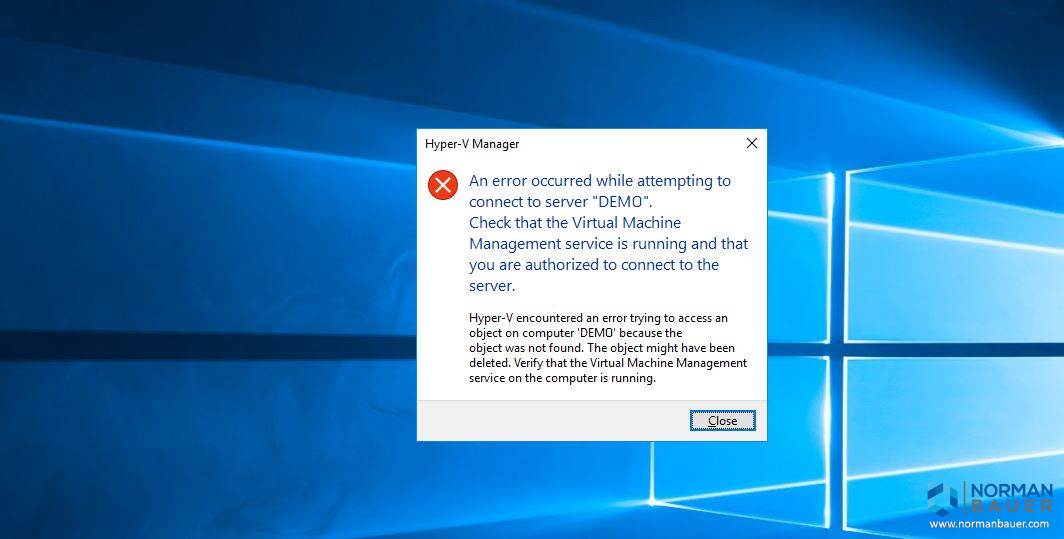
Last week I experienced some issues after installing Windows Management Framework 3.0 (KB2506143). I could not manage my Hyper-V Servers (the console kept saying there was no Hyper-V role installed on that server), group policies were not applied and WMI did not work.

Group Policy Error in System eventlog (id 1065):

The processing of Group Policy failed. Windows could not evaluate the Windows Management Instrumentation (WMI) filter for the Group Policy object CN={AD443F1C-C1B4-201A-B38E-CF596AB23FE6},CN=Policies,CN=System,DC=normanbauer,DC=com. This could be caused by RSOP being disabled or Windows Management Instrumentation (WMI) service being disabled, stopped, or other WMI errors. Make sure the WMI service is started and the startup type is set to automatic. New Group Policy objects or settings will not process until this event has been resolved.

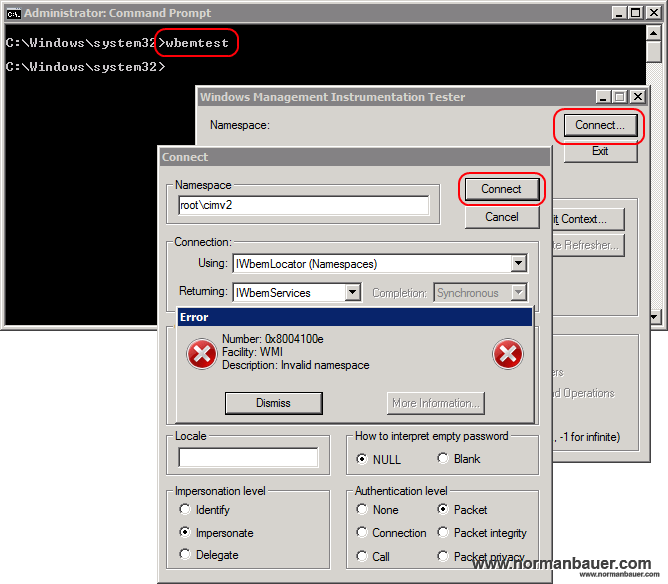
Error while testing WMI:
wmi_error_after_installing_wmf30
“Number: 0x8004100e Facility: WMI Description: Invalid namespace”

A few hours ago Microsoft released a “fast publish” article about this issue at http://support.microsoft.com/kb/2796086 saying this behavior only exists on computers running SCCM 2012 agent:

This problem occurs because the System Center 2012 Configuration Manager RTM client is not compatible with Windows Management Framework 3.0. During the daily Client Health evaluation, CCMEval.exe mistakenly finds the WMI repository to be corrupted and thus calls for a rebuild and reinstalls the client. The rebuild of the repository by CCMEval causes loss of MP specific information, methods, etc., from WMI which as a result causes the MP to fail.

Well, the problem with Microsoft’s solution is, it won’t fix your existing problem, that WMI is already corrupted now. It only prevents you from running into this issue if everything’s still fine on your machines.

While working on this issue since Friday we experienced the same behavior. Today Microsoft and us were working on a CritSit regarding this specific problem.

So here is what we did to fix WMI, group policy processing and hopefully Hyper-V (I’ll check that tonight):

  • Login to your machine
  • Check if wbemtest fails (see screenshot above, this step is optional if you know what you’re doing)
  • Open services.msc
  • Disable and then stop Windows Management Instrumentation service (Winmgmt), remember aka write down, which dependent services will also be stopped
  • Open explorer and navigate to C:\Windows\System32\wbem
  • Rename repository folder to repository.old (or something else)
  • Rename repository.001 (or that repository version that fits you best, most commonly the oldest one) to repository
  • Enable (Automatic) and Start Windows Management Instrumentation service (Winmgmt), start all dependent services
  • Reboot your machine (optional)
  • Check wbemtest

I can tell that this worked for WMI itself, group policy processing and everything else we experienced so far. I’ll need to check the behavior of Hyper-V tonight, and give you the results tomorrow.

Update 1

I just restored WMI repository on a DC and on a Hyper-V host (no reboot needed!). Both are now working without any issues. Group policies get applied, Hyper-V management runs fine and WMI works.

Update 2

All Hyper-V machines I tested these steps on needed no reboot, and all virtual guests stayed alive while stopping the Hyper-V services – only Hyper-V Management was not available.

Update 3

The Windows Management Framework 3.0 update also causes problems with managing Hyper-V hosts using Virtual Machine Manager:

Warning (2927)
A Hardware Management error has occurred trying to contact server servername.domain.com :a:DestinationUnreachable :The WS-Management service cannot process the request. The service cannot find the resource identified by the resource URI and selectors.
Unknown error (0x8033803b)

Microsoft published another “fast publish” kb about that topic at http://support.microsoft.com/kb/2795043. To resolve this issue follow these steps (published by Microsoft):

  1. In Control Panel, open Programs and Features.
  2. Click View installed updates.
  3. Right-click Microsoft Windows Management Framework 3.0 (KB2506143) and select Uninstall.
  4. Once the uninstall is complete, restart the server.
  5. Once the server is restarted, open an evaluated command prompt, type the following command and hit enter:
    winrm qc
  6. Follow the prompts to enable WinRM requests on the server.
  7. Restart the server.
  8. Once the server is restarted, open the VMM Console and verify the issue is resolved.

Update 4

The Windows PowerShell Blog Team released an article about compatibility issues with Windows Management Framework 3.0 update. According to them following products currently have issues with WMF 3:

  • System Center 2012 Configuration Manager
  • System Center Virtual Machine Manager
  • Microsoft Exchange Server 2007 and Microsoft Exchange Server 2010
  • Microsoft SharePoint 2010
  • Windows Small Business Server 2008 and Windows Small Business Server 2011

Read the full blog post at http://blogs.msdn.com/b/powershell/archive/2012/12/20/windows-management-framework-3-0-compatibility-update.aspx

How to change BitLocker recovery password with vbScript?

Related to my last post about how to change BitLocker recovery password from an elevated command prompt here is how you can achieve the same result with vbScript and WMI. This script is from Microsoft TechNet: BitLocker Drive Encryption Operations Guide: Recovering Encrypted Volumes with AD DS.

' Target drive letter
strDriveLetter = "c:"

' Target computer name
' Use "." to connect to the local computer
strComputerName = "."

' --------------------------------------------------------------------------------
' Connect to the BitLocker WMI provider class
' --------------------------------------------------------------------------------

strConnectionStr = "winmgmts:" _
                 & "{impersonationLevel=impersonate,authenticationLevel=pktPrivacy}!\\" _
                 & strComputerName _
                 & "\root\cimv2\Security\MicrosoftVolumeEncryption"

On Error Resume Next 'handle permission errors

Set objWMIService = GetObject(strConnectionStr)

If Err.Number <> 0 Then
     WScript.Echo "Failed to connect to the BitLocker interface (Error 0x" & Hex(Err.Number) & ")."
     Wscript.Echo "Ensure that you are running with administrative privileges."
     WScript.Quit -1
End If

On Error GoTo 0

strQuery = "Select * from Win32_EncryptableVolume where DriveLetter='" & strDriveLetter & "'"
Set colTargetVolumes = objWMIService.ExecQuery(strQuery)

If colTargetVolumes.Count = 0 Then
    WScript.Echo "FAILURE: Unable to find BitLocker-capable drive " &  strDriveLetter & " on computer " & strComputerName & "."
    WScript.Quit -1
End If

' there should only be one volume found
For Each objFoundVolume in colTargetVolumes
    set objVolume = objFoundVolume
Next

' objVolume is now our found BitLocker-capable disk volume

' --------------------------------------------------------------------------------
' Perform BitLocker WMI provider functionality
' --------------------------------------------------------------------------------

' Add a new recovery password, keeping the ID around so it doesn't get deleted later
' ----------------------------------------------------------------------------------

nRC = objVolume.ProtectKeyWithNumericalPassword("Recovery Password Refreshed By Script", , sNewKeyProtectorID)

If nRC <> 0 Then
     WScript.Echo "FAILURE: ProtectKeyWithNumericalPassword failed with return code 0x" & Hex(nRC)
     WScript.Quit -1
End If

' Removes the other, "stale", recovery passwords
' ----------------------------------------------------------------------------------

nKeyProtectorTypeIn = 3 ' type associated with "Numerical Password" protector

nRC = objVolume.GetKeyProtectors(nKeyProtectorTypeIn, aKeyProtectorIDs)

If nRC <> 0 Then
     WScript.Echo "FAILURE: GetKeyProtectors failed with return code 0x" & Hex(nRC)
     WScript.Quit -1
End If

' Delete those key protectors other than the one we just added.

For Each sKeyProtectorID In aKeyProtectorIDs
     If sKeyProtectorID <> sNewKeyProtectorID Then
          nRC = objVolume.DeleteKeyProtector(sKeyProtectorID)
          If nRC <> 0 Then
               WScript.Echo "FAILURE: DeleteKeyProtector on ID " & sKeyProtectorID & " failed with return code 0x" & Hex(nRC)
               WScript.Quit -1
          Else
               ' no output
               'WScript.Echo "SUCCESS: Key protector with ID " & sKeyProtectorID & " deleted"
          End If
     End If
Next

WScript.Echo "A new recovery password has been added. Old passwords have been removed."

' - some advanced output (hidden)
'WScript.Echo ""
'WScript.Echo "Type ""manage-bde -protectors -get " & strDriveLetter & " -type recoverypassword"" to view existing passwords."

How to access WMI namespaces on remote computers that require encryption?

When you have a look at my vbscript bitlocker post and try to use it on remote machines you may not get any results but an application eventlog entry similar to this one here:

Event Source: WinMgmt
Event ID: 5605
Access to the [...] namespace was denied. The namespace is marked with RequiresEncryption but the client connection was attempted with an authentication level below Pkt_Privacy. Re try the connection using Pkt_Privacy authentication level.

When using security related namespaces on remote machines you need to connect to wmi using a higher authentication level:

strComputer = "remotemachine"
Set objWMIService = GetObject("winmgmts:{authenticationLevel=pktPrivacy}\\" & strComputer & "\root\CIMV2\Security\MicrosoftVolumeEncryption")

You can use one of these authentication levels:

Name/value Description
WbemAuthenticationLevelDefault

0

Moniker: Default

WMI uses the default Windows Authentication setting. This is the recommended setting that allows WMI to negotiate to the level required by the server returning data. However, if the namespace requires encryption, use WbemAuthenticationLevelPktPrivacy.

WbemAuthenticationLevelNone

1

Moniker: None

Uses no authentication.

WbemAuthenticationLevelConnect

2

Moniker: Connect

Authenticates the credentials of the client only when the client establishes a relationship with the server.

WbemAuthenticationLevelCall

3

Call

Authenticates only at the beginning of each call when the server receives the request.

WbemAuthenticationLevelPkt

4

Moniker: Pkt

Authenticates that all data received is from the expected client.

WbemAuthenticationLevelPktIntegrity

5

Moniker: PktIntegrity

Authenticates and verifies that none of the data transferred between client and server has been modified.

WbemAuthenticationLevelPktPrivacy

6

Moniker: PktPrivacy

Authenticates all previous impersonation levels and encrypts the argument value of each remote procedure call. Use this setting if the namespace to which you are connecting requires an encrypted connection.

Source: MSDN Library

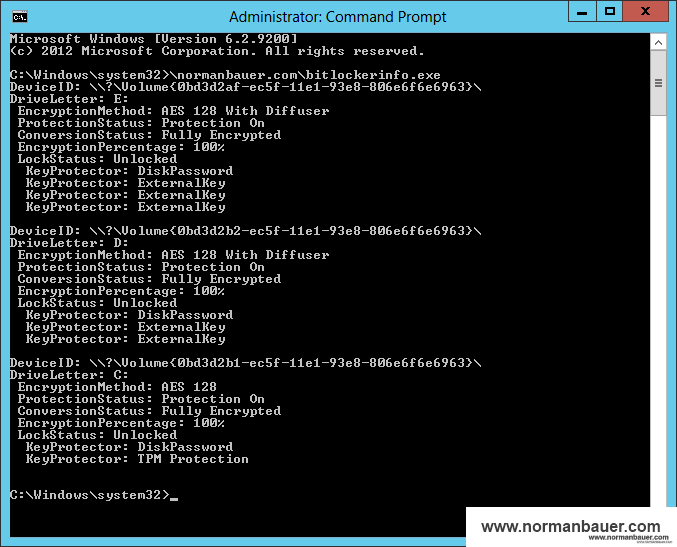
How to get some information on Bitlocker using VBScript and WMI?

strComputer = "."
Set objWMIService = GetObject("winmgmts:\\" & strComputer & "\root\CIMV2\Security\MicrosoftVolumeEncryption")
Set colItems = objWMIService.ExecQuery("SELECT * FROM Win32_EncryptableVolume",,48)

Dim arEncryptionMethod
arEncryptionMethod = Array("None", "AES 128 With Diffuser", "AES 256 With Diffuser", "AES 128", "AES 256")

Dim arProtectionStatus
arProtectionStatus = Array("Protection Off", "Protection On", "Protection Unknown")

Dim arConversionStatus
arConversionStatus = Array("Fully Decrypted", "Fully Encrypted", "Encryption In Progress", "Decryption In Progress", "Encryption Paused", "Decryption Paused")

Dim arLockStatus
arLockStatus = Array("Unlocked", "Locked")

For Each objItem in colItems
  Dim EncryptionMethod
  Dim ProtectionStatus
  Dim ConversionStatus
  Dim EncryptionPercentage 'Percentage of the volume that is encrypted
  Dim VolumeKeyProtectorID
  Dim LockStatus

  objItem.GetEncryptionMethod EncryptionMethod
  objItem.GetProtectionStatus ProtectionStatus
  objItem.GetConversionStatus ConversionStatus, EncryptionPercentage
  objItem.GetKeyProtectors 0,VolumeKeyProtectorID
  objItem.GetLockStatus LockStatus

  WScript.Echo "DeviceID: " & objItem.DeviceID
  Wscript.Echo "DriveLetter: " & objItem.DriveLetter
  Wscript.Echo "EncryptionMethod: " & arEncryptionMethod(EncryptionMethod)
  Wscript.Echo "ProtectionStatus: " & arProtectionStatus(ProtectionStatus)
  Wscript.Echo "ConversionStatus: " & arConversionStatus(ConversionStatus)
  Wscript.Echo "EncryptionPercentage: " & EncryptionPercentage & "%"
  Wscript.Echo "LockStatus: " & arLockStatus(LockStatus)

  For Each objId in VolumeKeyProtectorID
    Dim VolumeKeyProtectorFriendlyName
    objItem.GetKeyProtectorFriendlyName objId, VolumeKeyProtectorFriendlyName
    If VolumeKeyProtectorFriendlyName <> "" Then
      Wscript.Echo "KeyProtectors: " & VolumeKeyProtectorFriendlyName
    End If
  Next
Next

Documentation for functions, methods and properties used in this post: