Norman Bauer

… just technical stuff!

Home » Posts tagged "SharePoint"

Error while running SharePoint 2010 Products Configuration Wizard

Sharepoint Foundation, Event 5586, mirroring or availability group

The wizard aborts at about 10% in step 9. Everything I could find in the logs was this here:

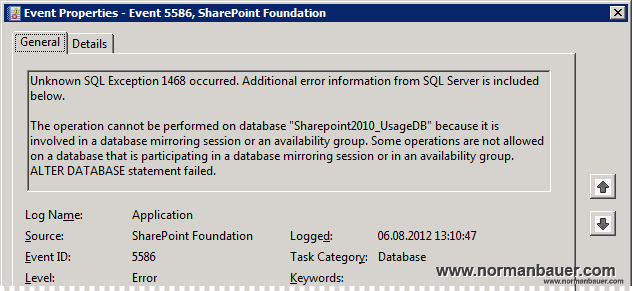
Unknown SQL Exception 1468 occurred. Additional error information from SQL Server is included below.

The operation cannot be performed on database “Sharepoint2010_UsageDB” because it is involved in a database mirroring session or an availability group. Some operations are not allowed on a database that is participating in a database mirroring session or in an availability group.
ALTER DATABASE statement failed.

Seems legit to me, since I moved all databases to a SQL Server 2012 Always On environment…

Technet says:

We do not recommend that you mirror the Usage and Health Data Collection Logging database. A SharePoint environment can continue to run if this database fails, and this data can be quickly regenerated.

So I removed the Usage DB from the Always On Availability Group, ran the wizard again and it worked.

Hot to fix Sharepoint Event 6398 “Could not find stored procedure ‘dbo.Search_GetRecentStats’.”?

Sharepoint Foundation, Event 6398

While migrating my Sharepoint 2010 farm from Microsoft SQL Server 2005 to a SQL Server 2012 ‘Always On’ environment I found the following error in the eventlog:

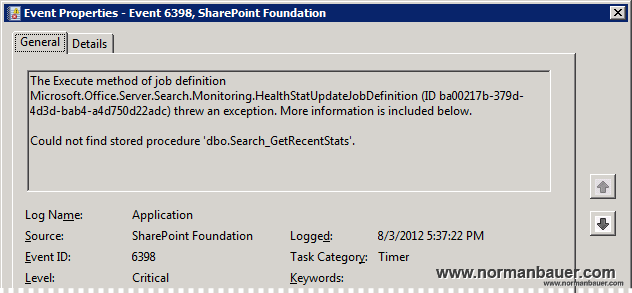
The Execute method of job definition Microsoft.Office.Server.Search.Monitoring.HealthStatUpdateJobDefinition (ID ba00217b-379d-4d3d-bab4-a4d750d22adc) threw an exception. More information is included below.

Could not find stored procedure ‘dbo.Search_GetRecentStats’.

This error can be fixed in the Sharepoint 2010 Central Administration, navigating to Monitoring > Timer Jobs, Check Job Status > Search Health Monitoring – Trace Events and then selecting Run Now.

How to fix broken images after mySite URL change in SharePoint 2010?

Here is a small PowerShell script to fix the pictureurl for all userprofiles after changing the mySite Url:
$mySiteWebapplicationUrl = "https://mysite.normanbauer.com/"
#current Url of your mySite website

$mySiteOldUrlValue = "http://mysitetest:80/"
#former Url where your pictures do not reside any more

$mySiteNewUrlValue = "https://mysite.normanbauer.com:443/"
#current Url where your images can be found now

$mySite = Get-SPSite $mySiteWebapplicationUrl
$SPServiceContext = Get-SPServiceContext $mySite
$userProfileManager = New-Object Microsoft.Office.Server.UserProfiles.UserProfileManager($SPServiceContext)
$userProfiles = $userProfileManager.GetEnumerator()

foreach ($userProfile in $userProfiles)
{
  #if pictureurl is not empty replace the old url part with the new one
  if ($userProfile["PictureURL"] -ne '')
  {
    $oldPictureUrl = $userProfile["PictureURL"].toString()
    $newPictureUrl = $oldPictureUrl -Replace $mySiteOldUrlValue, $mySiteNewUrlValue
    write-host "oldPictureUrl = " $oldPictureUrl " --> newPictureUrl = " $newPictureUrl
    $userProfile["PictureURL"].Value = $newPictureUrl
    $userProfile.Commit()
  } 
}

Creating profile synchronization connections in Sharepoint 2010 fails with error

Sharepoint 2010 Access to the requested resource(s) is denied error

When creating profile synchronization connections in Sharepoint 2010, for example as a part of configuring the profile synchronization service (http://technet.microsoft.com/en-us/library/ee721049.aspx) you may receive one of the following errors:

Error
Unable to process Create message
Troubleshoot issues with Microsoft SharePoint Foundation.
Correlation ID: {GUID}
Date and Time: {timestamp}

Error
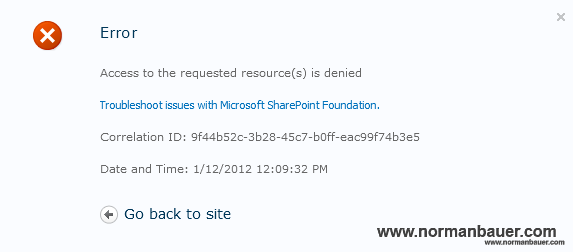
Access to the requested resource(s) is denied
Troubleshoot issues with Microsoft SharePoint Foundation.
Correlation ID: {GUID}
Date and Time: {timestamp}

Normally you’ll get the “Access to the requested resource(s) is denied” error when trying to create a connection but the profile synchronization user (this is the farm account user you used to start the User Profile Synchronization service) does not have administrative rights on the profile synchronization server (this is the server you selected for Profile Synchronization Instance when creating the User Profile Service application). You can simply solve this problem by adding the user to the local administrators group temporarily.

The “Unable to process Create message” error happens when you tried to create a synchronization connection earlier and trying to create a new one with the same name. This occurs, for example, when you retry the creation with the same name after the “Access to the requested resource(s) is denied” error appeared on the last try. Simply choose another name and confirm that the User Profile Synchronization service user has at least local administrator rights on the profile synchronization server.

Opening a site in SharePoint Designer 2010 fails with unspecified error

When opening a site in Microsoft SharePoint Designer 2010 the following error occurs: “The server could not complete your request. For more specific information, click the Details button.” But when clicking the “Details” button, a window opens that does not specify anything. It says “Below is the message that the server returned. For more information, contact your Internet service provider or web server administrator.” But the message is empty. There are no details given on the error.

After closing both windows a message appears: “An error occurred while trying to fetch data from your SharePoint site. Unexpected response from the server. The content type of the response is “”. The status code is “OK”. All that you can do now is to hit OK. But the website will not be opened and nothing else will happen.

I don’t know why, but my first thought was about authentication. I checked it in the IIS Manager.

The authentication was set to “Windows Authentication”, its providers to “Negotiate:Kerberos” and “Negotiate”.

After adding NTLM to the list of providers I tried to open the website again in SharePoint Designer and it worked!

So if you change any authentication settings of your SharePoint sites always add NTLM as a fallback for the Designer. Otherwise it will not open websites authenticated by Windows Authentication.

How to configure item level recovery for Sharepoint 2010 with DPM 2010

I know that there are already a couple of articles covering this issue – but since I ran into trouble with exactly this configuration issue I realized that these articles do not cover everything. For example the problems you can run into.

To keep the steps to be taken as simple as possible I explain it regarding a Sharepoint farm with one server called “SHAREPOINT1″ and a DPM server called “DPM1″. The database server is sharepoint2010_test_db but we will not need this one while configuring backup.
Even in larger farms the steps to be taken will remain the same, because you will need to configure just one web frontend server.

First we need to deploy the Data Protection Manager 2010 agent. Just do it like you always did before:

  1. Open the DPM 2010 Administrator Console
  2. Switch to the management tab
  3. On the Agents panel hit “Install…”
  4. In the “Protection Agent Installation Wizard” choose “Install agents”
  5. Add your Sharepoint web frontend server
  6. Hit Next and enter you credentials
  7. Click Next and choose to not automatically restart the server
  8. On the last page click Install

When the installation is complete log on to your Sharepoint 2010 server and open an elevated command prompt. Now you need a domain account that has the farm administrator right and local administrator right on the server. I used the database access / farm administrator account used when deploying the farm: normanbauer.com\sp2010_test_fa. Of course you will also need its password!

Now type the following in the elevated command prompt (line by line; you may need to change the directory):

cd "%programfiles%\Microsoft Data Protection Manager\DPM\bin"
ConfigureSharepoint.exe -EnableSharePointProtection
ConfigureSharepoint.exe -EnableSPSearchProtection

For each of the ConfigureSharepoint commands you’ll need the account mentioned before. If the account you are using is not a member of the local administrators group on the server you will get an error message like this: “The specified Username and Password combination is Invalid.”

If everything worked correctly both commands will return “Operation completed successfully.” :

The account used for those two commands will be used as the run as credentials of a DPM developed DCOM object called WssCmdletWrapper:

Now you can configure the Sharepoint 2010 protection group in DPM. Again, go to the DPM 2010 Administrator Console and open the “Protection” panel. Create a new or modify an existing protection group. Add the server by choosing the database child item below the Sharepoint node of your server.

After completing the wizard DPM will start to synchronize all data. After that, you can review the progress in the Monitoring > Jobs panel, your databases can be restored using the Recovery panel. Simply navigate to your server > All Protected SharePoint Data > your database name. In the Recoverable Items list you can see your AdminContent DB, Config DB and any other Application databases you created before.

The problem now is, that you cannot navigate your application databases down to single items. DPM needs to create a catalog containing all urls of your Sharepoint sites first. This operation can take up to 24 hours but you can force DPM to do so immediately using PowerShell.

Open the DPM Management Shell from start menu and enter the following commands (please modify them to meet your servers names):

$dpmserver = "DPM1"
$sharepointserver = "SHAREPOINT1"
$pg = Get-ProtectionGroup $dpmserver
$ds = $pg | Get-Datasource
$sp = $ds | Where-Object {"$_.computer" -like "*" + $sharepointserver + "*" -and $_.type -like "*SharePoint*"}
$sp | Start-CreateCatalog

or as a one-liner:

Get-ProtectionGroup DPM1 | Get-Datasource | Where-Object {"$_.computer" -like "*SHAREPOINT1*" -and $_.type -like "*SharePoint*"} | Start-CreateCatalog

Now you should be able to navigate down to every single item of your farm:

If this is still not possible your account used to enable Sharepoint protection may not have sufficient rights. I had the problem when I first used a separate backup account that did not have a certain permission – I still do not know which one. I am currently using the farm administrator account, which is not a perfect solution but it works.

There is only one problem I found using that account: You cannot let Sharepoint change its password automatically from the managed accounts. Doing so would result in backup not working properly because the DCOM object mentioned before would need to be configured to use always the current password, which is not possible (as far as I know).

How to display user pictures in Outlook, Sharepoint & Co. using Active Directory?

Newer versions of Sharepoint, Outlook or Office Communicator support showing small user pictures in new mails, contact information or websites using data stored in a user’s object in Active Directory. Even Windows can show your user picture for example on the lock screen or in the start menu. But you need to make some preparations for this feature to work.
First at all you need the pictures for your user objects in the directory. You can use ADSI Edit, Powershell or 3rd party software to put pictures in AD. My blog post “How to save a user picture in Active Directory with vbScript?” will do this for you using vbScript.
The second step (only required if you have multiple domains) requires extend permissions on your forest. You’ll need at least the Schema Admin rights to edit the thumbnailPhoto attribute in the Active Directory Schema. View the attribute section in the Active Directory Schema snapin, open the properties of the thumbnailPhoto attribute and enable the option “Replicate this attribute to the Global Catalog”.
That’s all…
Note: This will work for Outlook, OCS, Sharepoint & Co. Windows will not use the data stored in the thumbnailPhoto attribute automatically. But there is a way to show the user picture in the start menu or on the lock screen. Please read my blog post “How to display Active Directory stored user account pictures in Windows?” for further information.