
Norman Bauer

… just technical stuff!

Home » Posts tagged "BitLocker"

“No such object” when configuring TPM on Windows Server 2012 or Windows 8

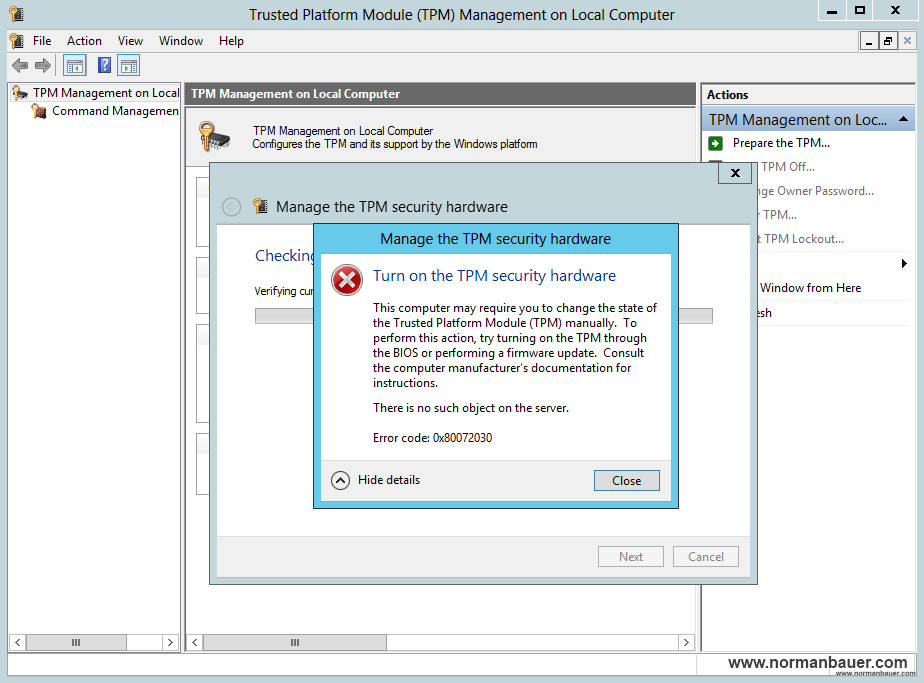
Turn on the TPM security hardware failed 0x80072030

Scenario: You have a Windows Server 2012 or Windows 8 computer with TPM and you store your Bitlocker recovery and TPM owner information in Active Directory.
When trying to configure the TPM hardware by using tpm.msc you get this error:

Turn on the TPM security hardware failed 0x80072030

Turn on the TPM security hardware

This computer may require you to change the state of the Trusted Platform Module (TPM) manually. To perform this action, try turning on the TPM through the BIOS or performing a firmware update. Consult the computer manufacture’s documentation for instructions.

There is no such object on the server.

Error code: 0×80072030

This error is a bit misleading as it asserts that there is something wrong with your hardware. But never mind. There is no such object on the server and error code 0×80072030 are Active Directory related. This simply means the wizard could not find an object in AD.

The way Windows Server 2012 and Windows 8 store their TPM owner information changed from previous versions. With Active Directory schema version 48 some TPM objects have been introduced (like msTPM-InformationObject) that store this information in the future. You can have look at these changes, just open the support\adprep\sch48.ldf file from your Windows Server 2012 DVD.

If you want to use AD to store your TPM information the same way you did with Windows Server 2008 R2 or Windows 7 you’ll need to update your schema first to version 56 (Windows Server 2012). This will bring all the necessary changes to your environment. If you cannot update your schema you’ll just have one possibility left: Move your computer object to another ou where the group policy object containing your TMP/Bitlocker settings is not applied. Configure TPM “offline” and store the information in a secure place – you won’t have the owner information in AD for this computer. Then move the object back to its previous ou.

Restore deleted computer object including BitLocker recovery information

Recovery of Active Directory objects became much easier with the introduction of AD recycle bin feature in Windows Server 2008 R2. Simply use the restore-adobject PowerShell cmdlet and you’re done. But what if you are using BitLocker with its keys stored in AD? You can still restore the computer object once it got deleted. But the attached msFVE-RecoveryInformation objects will not get restored automatically.

This small PowerShell cmdlet will do the work for you:

import-module ActiveDirectory

function RestoreComputer($computername)
{
  If ($computername.substring($computername.length - 1, 1) -ne '$')
  {
    $computername += '$'
  }

  $existing = Get-ADObject -Filter {sAMAccountName -eq $computername}
  If (!$existing)
  {
    "No existing computer object found, searching for deleted objects."
    $deleted = Get-ADObject -IncludeDeletedObjects -Filter {sAMAccountName -eq $computername -and Deleted -eq $True}
    If ($deleted)
    {
      "Deleted object found, trying to restore..."
      $deleted | Restore-ADObject
      Start-Sleep -s 5
      $restoredobject = Get-ADObject -Filter {sAMAccountName -eq $computername}
      If ($restoredobject)
      {
        "Computer object successfully restored. Trying to find recovery information..."
        $recoveryinfos = Get-ADObject -IncludeDeletedObjects -Filter {lastKnownParent -eq $restoredobject.DistinguishedName -and Deleted -eq $True -and objectClass -eq 'msFVE-RecoveryInformation'}
        ForEach($recoveryinfo in $recoveryinfos)  
        {
          If ($recoveryinfo)
          {
            "Recovery information found, trying to restore..."
            $recoveryinfo | Restore-ADObject
            Start-Sleep -s 5
            $restoredinfo = Get-ADObject -Filter {ObjectGUID -eq $recoveryinfo.ObjectGUID}
            If ($restoredinfo)
            {
              "Recovery information successfully restored."
            }
            Else
            {
              "Could not restore recovery information, aborting script."
              return $false
            }
          }
          Else
          {
            "No recovery information found for computer object, aborting script."
            return $true
          }
        }
      }
      Else
      {
        "Something went wrong. Could not find restored object, aborting script."
        return $false
      }
    }
    Else
    {
      "No deleted computer found, aborting script"
      return $false;
    }
  }
  Else
  {
    "Computer already existing, aborting script"
    return $false
  }
  "Restore of computer object succeeded."
  "Finished."
  return $true
}

$cn = Read-Host "Computername to restore?"

RestoreComputer($cn)

The script will first search for any existing computer objects with the same name. If there are none, it will try to restore a deleted object. Be careful if you have multiple deleted objects with the same name, you may need to change some parts of the script for this scenario.
After that it searches for BitLocker recovery information and tries to restore this as well – no matter how many objects the computer object contained.

How to change BitLocker recovery password with vbScript?

Related to my last post about how to change BitLocker recovery password from an elevated command prompt here is how you can achieve the same result with vbScript and WMI. This script is from Microsoft TechNet: BitLocker Drive Encryption Operations Guide: Recovering Encrypted Volumes with AD DS.

' Target drive letter
strDriveLetter = "c:"

' Target computer name
' Use "." to connect to the local computer
strComputerName = "."

' --------------------------------------------------------------------------------
' Connect to the BitLocker WMI provider class
' --------------------------------------------------------------------------------

strConnectionStr = "winmgmts:" _
                 & "{impersonationLevel=impersonate,authenticationLevel=pktPrivacy}!\\" _
                 & strComputerName _
                 & "\root\cimv2\Security\MicrosoftVolumeEncryption"

On Error Resume Next 'handle permission errors

Set objWMIService = GetObject(strConnectionStr)

If Err.Number <> 0 Then
     WScript.Echo "Failed to connect to the BitLocker interface (Error 0x" & Hex(Err.Number) & ")."
     Wscript.Echo "Ensure that you are running with administrative privileges."
     WScript.Quit -1
End If

On Error GoTo 0

strQuery = "Select * from Win32_EncryptableVolume where DriveLetter='" & strDriveLetter & "'"
Set colTargetVolumes = objWMIService.ExecQuery(strQuery)

If colTargetVolumes.Count = 0 Then
    WScript.Echo "FAILURE: Unable to find BitLocker-capable drive " &  strDriveLetter & " on computer " & strComputerName & "."
    WScript.Quit -1
End If

' there should only be one volume found
For Each objFoundVolume in colTargetVolumes
    set objVolume = objFoundVolume
Next

' objVolume is now our found BitLocker-capable disk volume

' --------------------------------------------------------------------------------
' Perform BitLocker WMI provider functionality
' --------------------------------------------------------------------------------

' Add a new recovery password, keeping the ID around so it doesn't get deleted later
' ----------------------------------------------------------------------------------

nRC = objVolume.ProtectKeyWithNumericalPassword("Recovery Password Refreshed By Script", , sNewKeyProtectorID)

If nRC <> 0 Then
     WScript.Echo "FAILURE: ProtectKeyWithNumericalPassword failed with return code 0x" & Hex(nRC)
     WScript.Quit -1
End If

' Removes the other, "stale", recovery passwords
' ----------------------------------------------------------------------------------

nKeyProtectorTypeIn = 3 ' type associated with "Numerical Password" protector

nRC = objVolume.GetKeyProtectors(nKeyProtectorTypeIn, aKeyProtectorIDs)

If nRC <> 0 Then
     WScript.Echo "FAILURE: GetKeyProtectors failed with return code 0x" & Hex(nRC)
     WScript.Quit -1
End If

' Delete those key protectors other than the one we just added.

For Each sKeyProtectorID In aKeyProtectorIDs
     If sKeyProtectorID <> sNewKeyProtectorID Then
          nRC = objVolume.DeleteKeyProtector(sKeyProtectorID)
          If nRC <> 0 Then
               WScript.Echo "FAILURE: DeleteKeyProtector on ID " & sKeyProtectorID & " failed with return code 0x" & Hex(nRC)
               WScript.Quit -1
          Else
               ' no output
               'WScript.Echo "SUCCESS: Key protector with ID " & sKeyProtectorID & " deleted"
          End If
     End If
Next

WScript.Echo "A new recovery password has been added. Old passwords have been removed."

' - some advanced output (hidden)
'WScript.Echo ""
'WScript.Echo "Type ""manage-bde -protectors -get " & strDriveLetter & " -type recoverypassword"" to view existing passwords."

How to change BitLocker recovery password?

Sometimes you need to give a BitLocker recovery password to one of your customers. For example when you cannot access the computer remotely. It also happens that passwords get revealed accidentally or intentionally. While either scenario can be a security lack you may want to change the recovery password of a certain computer.

To do so, you’ll need to open an elevated command prompt. With manage-bde.exe (BitLocker Drive Encryption: Configuration Tool) you can manage to change such recovery passwords.

First get a list of recovery passwords for the desired partition by typing:

manage-bde.exe c: -protectors -get -type recoverypassword

This step is not really necessary unless you have more protectors of a certain type. If so you’ll need to copy the ID of the protector you want to change.

After that delete the protector. You can do this by using the id:

manage-bde.exe c: -protectors -delete -id {ID}

or by using the type:

manage-bde.exe c: -protectors -delete -type recoverypassword

The BitLocker Drive Encryption: Configuration Tool will now delete the protector. You may want to check this by running the first command again. Now you can add a new protector of type recovery password. That new protector will get a new id and a new password:

manage-bde.exe c: -protectors -add –rp

The configuration tool generates a new password, tells you to store it in a secure location and, if set up to do so, writes it to Active Directory.

Note: Every command used here, applies to the c: drive. You may want to change this according to your needs.

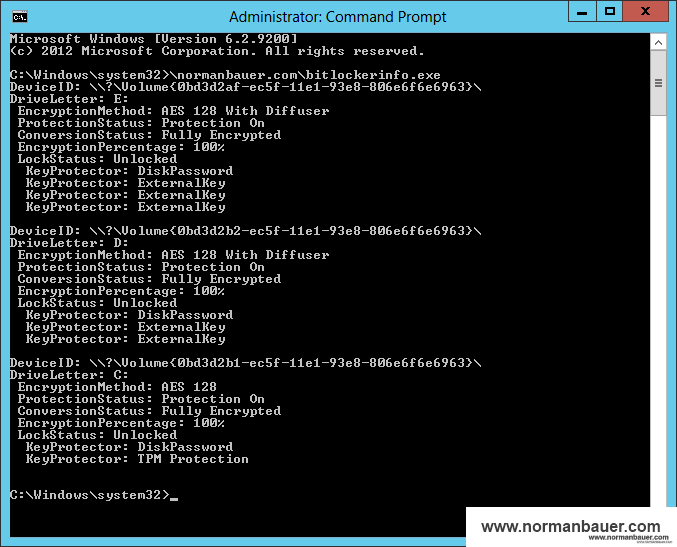
How to get some information on Bitlocker using VBScript and WMI?

strComputer = "."
Set objWMIService = GetObject("winmgmts:\\" & strComputer & "\root\CIMV2\Security\MicrosoftVolumeEncryption")
Set colItems = objWMIService.ExecQuery("SELECT * FROM Win32_EncryptableVolume",,48)

Dim arEncryptionMethod
arEncryptionMethod = Array("None", "AES 128 With Diffuser", "AES 256 With Diffuser", "AES 128", "AES 256")

Dim arProtectionStatus
arProtectionStatus = Array("Protection Off", "Protection On", "Protection Unknown")

Dim arConversionStatus
arConversionStatus = Array("Fully Decrypted", "Fully Encrypted", "Encryption In Progress", "Decryption In Progress", "Encryption Paused", "Decryption Paused")

Dim arLockStatus
arLockStatus = Array("Unlocked", "Locked")

For Each objItem in colItems
  Dim EncryptionMethod
  Dim ProtectionStatus
  Dim ConversionStatus
  Dim EncryptionPercentage 'Percentage of the volume that is encrypted
  Dim VolumeKeyProtectorID
  Dim LockStatus

  objItem.GetEncryptionMethod EncryptionMethod
  objItem.GetProtectionStatus ProtectionStatus
  objItem.GetConversionStatus ConversionStatus, EncryptionPercentage
  objItem.GetKeyProtectors 0,VolumeKeyProtectorID
  objItem.GetLockStatus LockStatus

  WScript.Echo "DeviceID: " & objItem.DeviceID
  Wscript.Echo "DriveLetter: " & objItem.DriveLetter
  Wscript.Echo "EncryptionMethod: " & arEncryptionMethod(EncryptionMethod)
  Wscript.Echo "ProtectionStatus: " & arProtectionStatus(ProtectionStatus)
  Wscript.Echo "ConversionStatus: " & arConversionStatus(ConversionStatus)
  Wscript.Echo "EncryptionPercentage: " & EncryptionPercentage & "%"
  Wscript.Echo "LockStatus: " & arLockStatus(LockStatus)

  For Each objId in VolumeKeyProtectorID
    Dim VolumeKeyProtectorFriendlyName
    objItem.GetKeyProtectorFriendlyName objId, VolumeKeyProtectorFriendlyName
    If VolumeKeyProtectorFriendlyName <> "" Then
      Wscript.Echo "KeyProtectors: " & VolumeKeyProtectorFriendlyName
    End If
  Next
Next

Documentation for functions, methods and properties used in this post: