Norman Bauer

… just technical stuff!

Home » Scripting » Archive by category "Transact-SQL"

System Center 2012 SP1 Operations Manager: Datawarehouse configuration failed to install

System Center 2012 SP1 Operations Manager Datawarehouse configuration failed to install

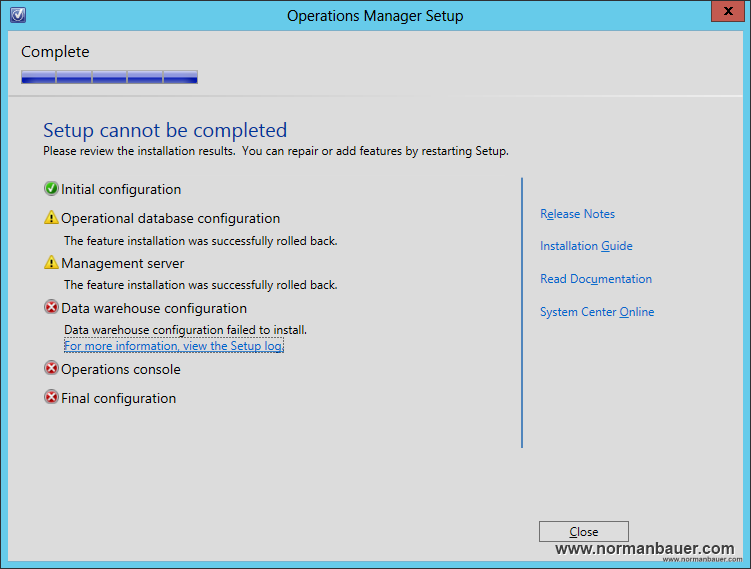
While installing Microsoft System Center 2012 SP1 Operations Manager I got following error:

System Center 2012 SP1 Operations Manager Datawarehouse configuration failed to install

In the log I could see that Setup could not create the Datawarehouse database:

EXEC(@sql);: Threw Exception.Type: System.Data.SqlClient.SqlException, Exception Error Code: 0×80131904, Exception.Message: CREATE FILE encountered operating system error 5(Access is denied.) while attempting to open or create the physical file ‘E:\SQL\Data.mdf’.
CREATE DATABASE failed. Some file names listed could not be created. Check related errors.

I have a standalone SQL 2012 SP1 server (SQL) and a Windows Server 2012 machine where I want to install Operations Manager. The data and log files on the SQL machine reside on separated disks: D for logs, E for data. I ran setup a few times and chose different folder names but nothing worked. Then I tried to specify a filename instead, because setup always tried to create the database using [foldername].mdf – you can see this in the log.

System Center 2012 SP1 Operations Manager Configure the data warehouse database

With filenames specified for Data and Log file folder setup ran fine and completed without any further errors. But… this lead to wrongly named files on my SQL server:

System Center 2012 SP1 Operations Manager Datawarehouse database files

System Center 2012 SP1 Operations Manager Datawarehouse database log files

System Center 2012 SP1 Operations Manager Datawarehouse database files in SQL

This, in general, is not really bad. But it’s simply not nice. So I shut down the Operations Manager server and detached the OperationsManagerDW database in SQL Server Management Studio by running this query:

USE master;
GO
EXEC sp_detach_db @dbname = N'OperationsManagerDW';
GO

Then I renamed the OperationsManagerDW.mdf.mdf and OperationsManagerDW.ldf.ldf files by removing the double extension and I deleted the empty folders. After that I reattached the databases with

USE master;
GO
CREATE DATABASE OperationsManagerDW 
    ON (FILENAME = 'E:\SQL\Data\OperationsManagerDW.mdf'),
       (FILENAME = 'D:\SQL\Logs\OperationsManagerDW.ldf')
    FOR ATTACH;
GO

Cannot insert duplicate key error while upgrading SCCM 2012 to SP1

SCCM 2012 SP1 Cannot insert duplicate key error

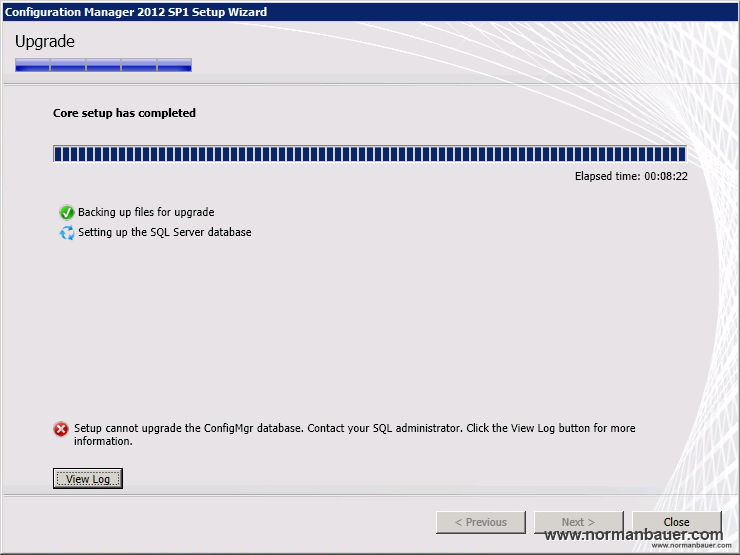
The following error occurred during SP1 update of Microsoft System Center 2012 Configuration Manager:

SCCM 2012 SP1 Cannot insert duplicate key error

ERROR: SQL Server error: [23000][2627][Microsoft][SQL Server Native Client 11.0][SQL Server]Violation of PRIMARY KEY constraint ‘CollectionQueryRuleTables_PK’. Cannot insert duplicate key in object ‘dbo.CollectionQueryRuleTables’. The duplicate key value is (16777228, 1, vSMS_R_System). Configuration Manager Setup 05.02.2013 09:12:18 4084 (0x0FF4)

The easiest way would be to delete the corresponding rows from CollectionQueryRuleTables table in your SCCM database. This would solve the problem but it is not supported by Microsoft:

  1. Note the CollectionID (16777228)
  2. Open SQL Management Studio, open SCCM Database
  3. Use this query to delete the rows in the table:
    DELETE FROM CollectionQueryRuleTables WHERE CollectionID = [YourCollectionID]
  4. Run your update again.
  5. Test if the collection still works. You can determine the collection by running this query:
    SELECT * FROM Collections_G WHERE CollectionID = [YourCollectionID]

    CollectionName is the name of the collection in SCCM.

Again: Editing the database directly is not supported. Make a backup of your database before you start! Don’t blame me if something goes wrong.

SQL Server 2012: Always On and SQL Server authentication

sql_user_sids

Here is just a small problem I experienced while adding databases with SQL Server authentication enabled (used for some php websites) to an availability group.

Steps I took to add the databases:

  1. Add all logins to the secondary server (SQL Management Studio > Security > Logins > Create login)
  2. Add database to availability group (Always On High Availability > Availability Groups > desired group > Add Database)

So the operation was successful and all databases were synchronized.
Now I did a manual failover to the second node. But the php application was not able to login anymore.

What happened? SQL users in the database are mapped to SQL logins. When I did the failover to the second node the SQL users sid did not match the sid of the SQL login with the exact same name anymore.

Now you could simply use the sp_change_users_login stored procedure to “remap” the login to the user, but you would need to do that after every failover – not a very nice solution.

You could also use the partial contained databases feature so you don’t need SQL logins anymore. Since php is a business need we cannot easily use this because php’s mssql_connect function does not support connection strings which you would need forcefully so SQL Server does know the ininital catalog you want to connect to.

So there is one last option. Make sure that all SQL users that shall be used on multiple nodes have a SQL login whose sid is the same on every node.
How to achieve that?

If you don’t already have a sql login create a new one (e.g. sql_login) on the first node. Use the sp_change_users_login stored procedure to map the login to the db user (sql_db_user):

sp_change_users_login 'update_one', 'sql_db_user', 'sql_login'

Now get the sid of the newly created login:

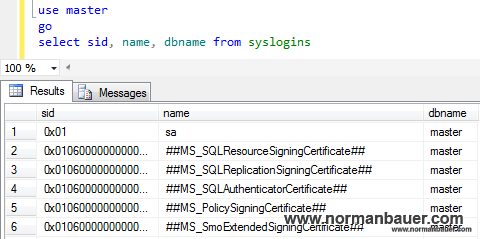
use master
go
select sid, name, dbname from syslogins

Now that you have the login’s sid you can run the following query on the next node to create a login with the same sid:

create login sql_login with password = 'sql_loginspassword', sid = {the sid from above goes here}

So that’s it. Now you have a login with the same sid on every node. You can easily failover to any node and your logins will not break anymore.

As a last step, make sure that the default database (properties page of the SQL login) for each login is the same on every node…

How to (re-)set identity column value in SQL Server?

When you use identity columns in SQL server you may have recognized that when deleting all table data your identity value stays at its latest position. Sometimes this is useful, sometimes it is not. Then you need to set this value to your preferred starting point. Another scenario would be that you need to start with a special position in a new table for example to meet naming conventions.

All you need is the DBCC CHECKIDENT command.

First you may want to know the value your identity column has at the moment:
DBCC CHECKIDENT ('tablename', NORESEED)

If you want to set the identity value to any other value use this command:
DBCC CHECKIDENT ('tablename', RESEED, 0) -- next value is 1
DBCC CHECKIDENT ('tablename', RESEED, 9) -- next value is 10
DBCC CHECKIDENT ('tablename', RESEED, 99) -- next value is 100 and so on

To use this command you must own the table, or be a member of the sysadmin, db_owner or db_ddladmin fixed database role.

How to display active connections and running queries in SQL Server?

This query shows all queries executed at the moment, the session id, status, used cpu time and the execution duration

SELECT st.text, r.session_id, r.status, r.command, r.cpu_time, r.total_elapsed_time
FROM sys.dm_exec_requests r
CROSS APPLY sys.dm_exec_sql_text(sql_handle) AS st

The following query shows the number of connections a user has with a database

SELECT db_name(dbid) as DatabaseName, count(dbid) as NoOfConnections, loginame as LoginName
FROM sys.sysprocesses
WHERE dbid > 0
GROUP BY dbid, loginame